How to use Github Action secrets with your Docker image

In the world of DevOps, handling secret variables — be it API keys, database credentials, or other sensitive data — in a secure manner is paramount. Ensuring a safe transit of these secrets from your version control system to your Dockerized application is a crucial part of the CI/CD process. This article sheds light on how to securely pass secret variables from GitHub to a Docker image, leveraging GitHub Secrets and Github Actions.
Before getting started please note that the process I describe below is secure when it comes to passing secrets to your app but not secure when it comes to secrets storage as the secrets. The reason for this is that this approach does not allow you to have rotating secrets and it also creates another entry vector as anyone with access to the registry would have access to the secrets by just looking into the image.
In my opinion the option described is suitable for non-production apps or non-sensitive apps (like maybe a blog site).
Prerequisites
- Familiarity with Docker, GitHub, and basic CI/CD principles.
- Active account on GitHub and a Docker environment set up on your machine.
- A private location where to push the images, after all secrets are not secret if the image is publicly accessible.
Setting up GitHub Secrets
1. Creating Secrets in GitHub
- Navigate to your repository on GitHub.
- Under the repository name, click on
Settings. - In the left sidebar, click
Secrets & Actions.
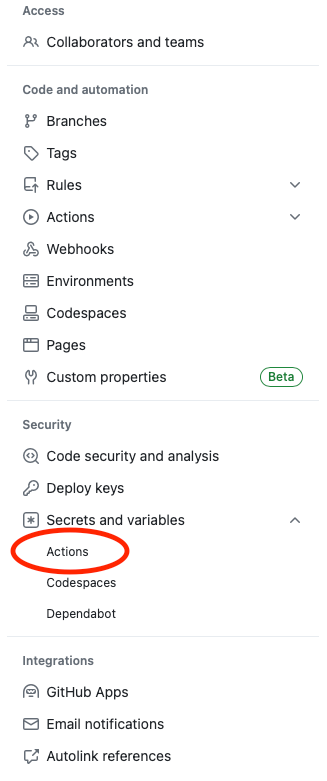
- Click
New repository secret, name your secret and add its value.
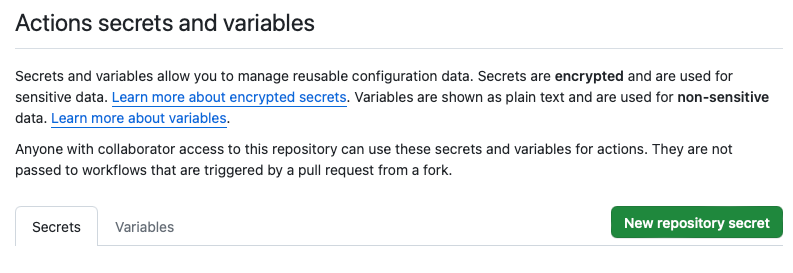
2. Security Considerations
- GitHub encrypts your secrets in rest, ensuring they are securely stored.
- You can set access permissions to define who can create, update, or view secrets as well as where those secrets are kept because there is also the option to store them at organisation level if the repo is in one.
- Depending on the method that you use, the secrets will either be obfuscated or not visible at all.
Using the GitHub secrets
Workflow Configuration
Now it’s time to configure the workflow. If you don’t already have a workflow let's create one in .github/workflows and name the file build.yml .
The following config will cover only the build & push part so the rest is up to you:
name: Build & push

on:
  push:
    branches: [ main ]

  workflow_dispatch:

defaults:
  run:
    working-directory: ./

jobs:
  push-app-image:
    runs-on: ubuntu-latest
    environment: production

    steps:
      - uses: actions/checkout@v3

      - name: Login to private registry
        uses: docker/login-action@v2
        with:
          registry: my.private.registry.com
          username: ${{ secrets.MY_REG_USER }}
          password: ${{ secrets.MY_REG_PASSWORD }}

      - name: Set up QEMU
        uses: docker/setup-qemu-action@v2

      - name: Set up Docker Buildx
        uses: docker/setup-buildx-action@v2

      - name: Build the app image
        uses: docker/build-push-action@v4
        with:
          push: true
          context: .
          file: path/to/Dockerfile
          platforms: linux/amd64
          tags: my.private.registry.com/my-image:latest
          secrets: |
            "secret_1=${{ secrets.MY_SECRET_1 }}"
            "secret_2=${{ secrets.MY_SECRET_2 }}"
You may notice that I am using the docker/build-push-action@v4 pre-built action to achieve this. The rationale behind this approach is its simplicity in execution: it not only builds the image but also securely transfers the secrets to the build command, and subsequently pushes the image to the private repository.
Using the secrets in your Dockerfile
In the previous workflow you may have noticed that there is a path/to/Dockerfile line. That Dockerfile is what we will be using the build the image that will be pushed to the private repository.
Before getting into the configuration of the Dockerfile let’s first take a look at the file which will contain the env variables that will be used by the application:
# .env.production
MY_SECRET_1=
SOMETHING_VERY_SECRET=
Now that we have our env configuration file, let’s see how the Dockerfile will look like (notice the lowercased words):
FROM debian

WORKDIR /my_app

RUN --mount=type=secret,id=secret_1 \
    sed -i "s/MY_SECRET_1=/MY_SECRET_1=$(cat /run/secrets/secret_1)/" .env.production

RUN --mount=type=secret,id=secret_2 \
    sed -i "s/SOMETHING_VERY_SECRET=/SOMETHING_VERY_SECRET=$(cat /run/secrets/secret_2)/" .env.production
Conclusion
Embarking on the task of managing secret variables may seem like venturing into complex territory, but as laid out in this guide, it’s more straightforward than it appears.
The steps outlined here simplify the process, making what might seem like a complex task quite achievable. So, with a little setup, you’re not just enhancing your project’s security but also taking a significant step towards mastering the art of CI/CD.